Appearance
Installing Unreal Engine 5.4
The mapping project needs Unreal Engine 5.4.4. It is free, and you install it through the Epic Games Launcher.
Get the version right
Use 5.4.4. A project made in 5.4 will not open in 5.5 or newer, and the plugins that ship with the mapping project are compiled for 5.4 only - they will not load in another version.
If you do not have the Epic Games Launcher yet, download it from epicgames.com/store/download, install it and sign in. Then follow the steps below.
1. Open the Unreal Engine section
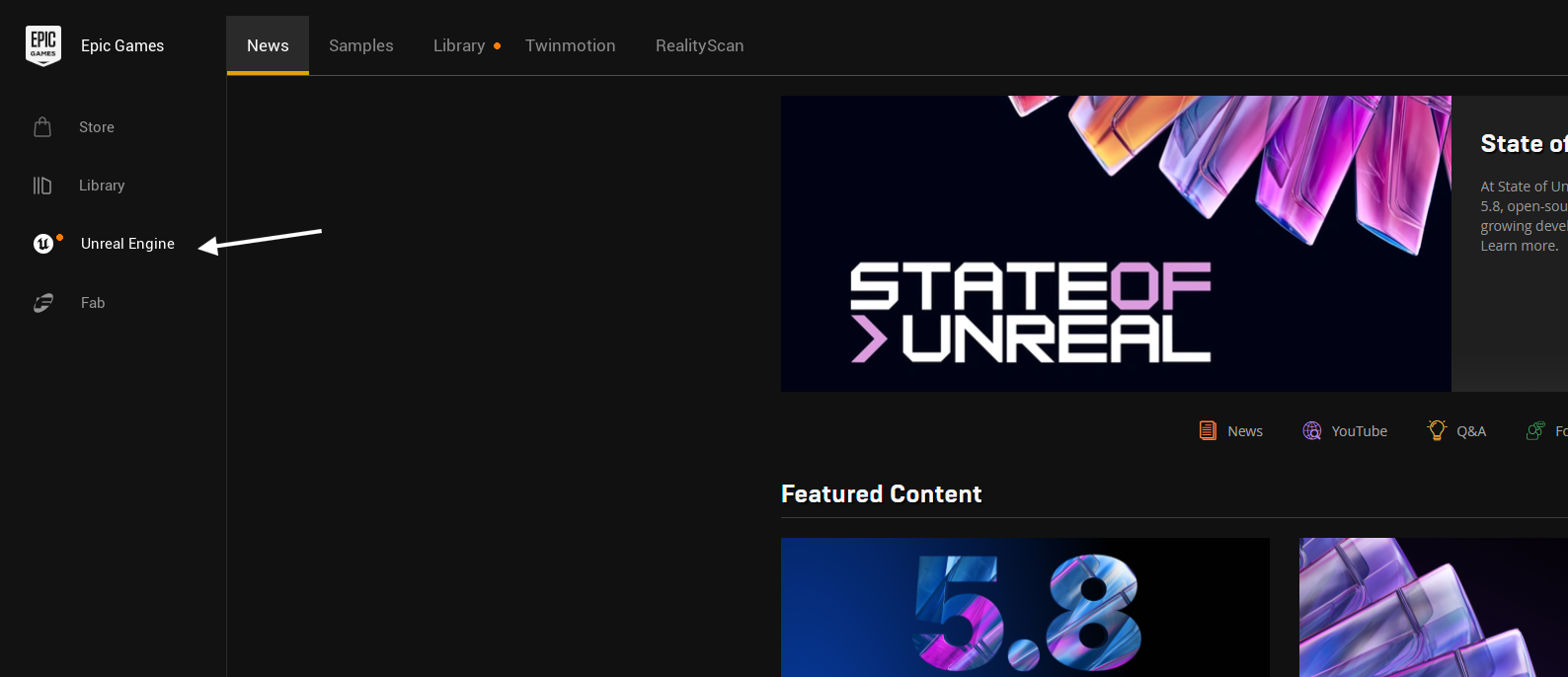
In the launcher, click Unreal Engine in the left sidebar.
2. Add an engine version
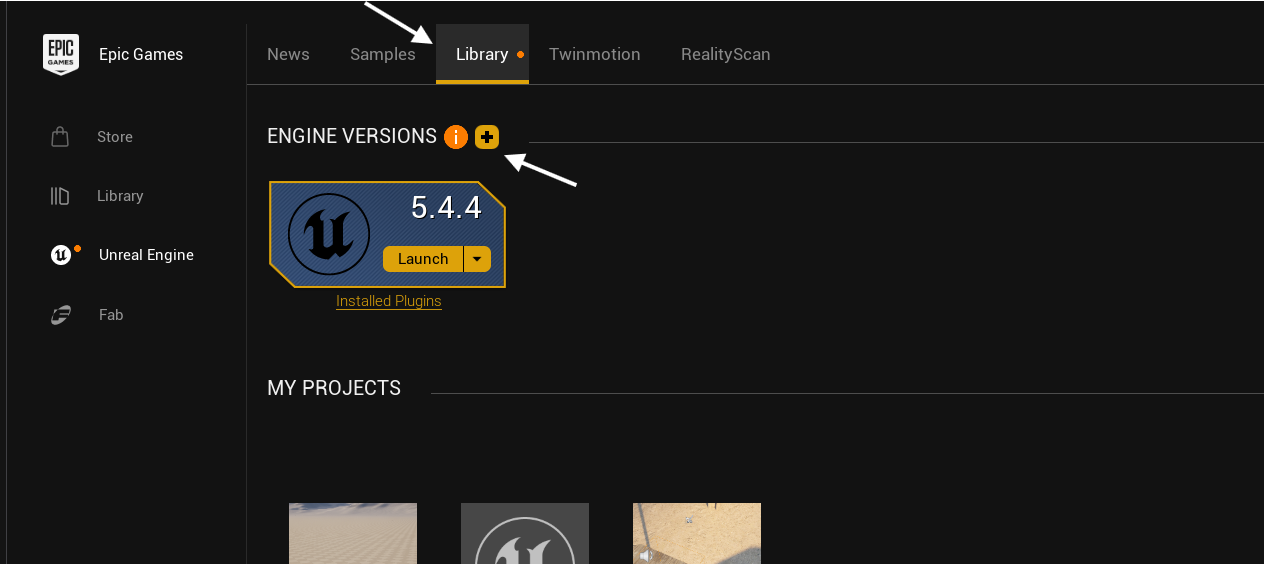
Go to the Library tab, then click the + next to ENGINE VERSIONS. A new version slot appears next to any you already have - installing 5.4.4 does not affect other versions, they can sit side by side.
3. Choose 5.4.4
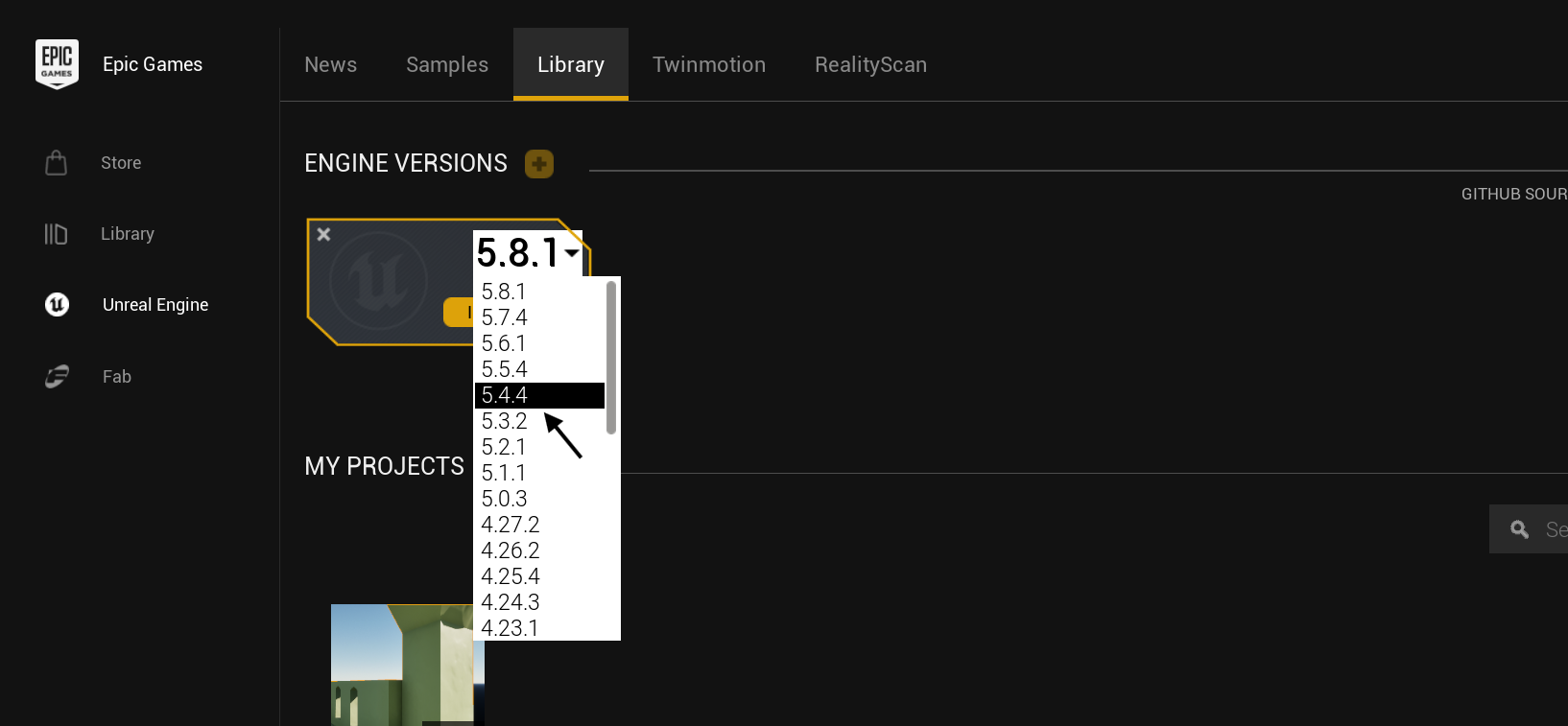
The new slot defaults to the newest engine version. Click the dropdown on it and pick 5.4.4 from the list.
4. Open the install options
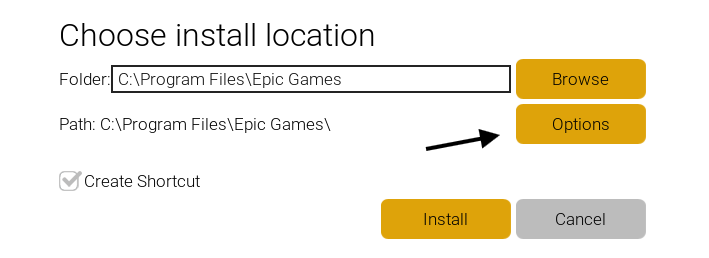
The install location window appears. Before starting, click Options. This is the step worth not skipping - the default selection downloads far more than you need.
5. Install Core Components only
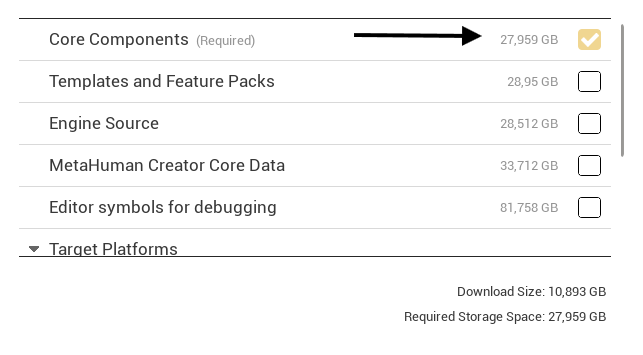
Untick everything except Core Components. The rest is not needed to build maps.
Click Install and wait for it to finish. It is a large download, so give it time.
Next steps
Once it has installed, head to Getting Started to download the mapping project and make your first map.
If vholumeMapping.uproject asks which engine version to use, or opens in the wrong one, right-click it in Windows Explorer and choose Switch Unreal Engine version to point it at 5.4.4.