Appearance
Using VHMap
This page covers the VHMap tools and options that are not part of the main setup flow.
VHMap menu
All VHMap tools are in the VHMap menu on the editor toolbar.
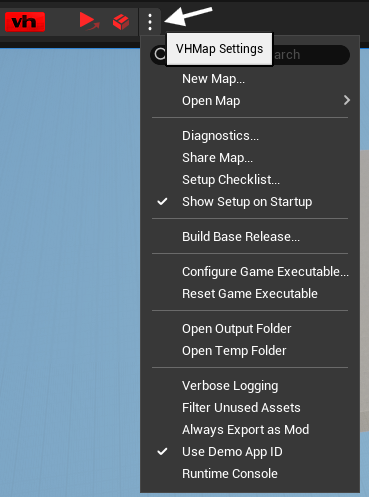
From here you can create maps, run diagnostics, build the base release, configure the game executable, open output folders, and toggle options like Use Demo App ID.
Create a map
If you did not create a map from the setup window:
- In the editor toolbar, click VHMap > New Map.
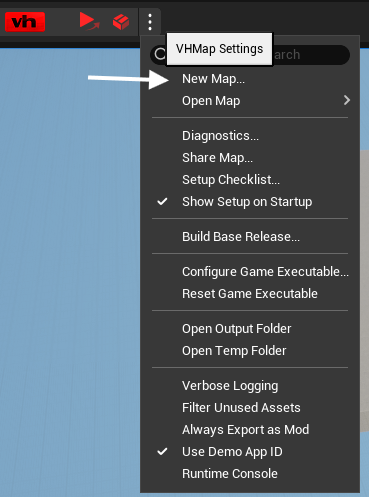
- Enter a name for your map plugin.
- A new level is created from the default template. It already includes a Start checkpoint, a PlayerStart, a Map End Trigger, and a Post Process Volume that gives your map the game's look. Leave the volume's
Maintag alone -- the game uses it to find the volume.
Diagnostics
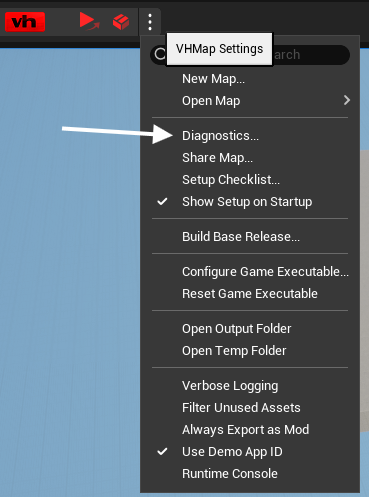
If something feels off, run VHMap > Diagnostics... to scan the project and the current map. It will flag common issues such as a missing base release, missing PlayerStart, or actors that are not set up for packing.
Testing with the VHOLUME demo
If you own the VHOLUME demo on Steam, you can test your map there without owning the full game.
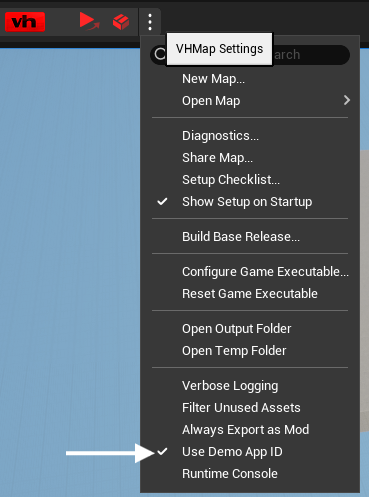
- Open the VHMap menu in the editor toolbar.
- Enable Use Demo App ID.
- Click VHMap > Play to launch the demo.
- Steam will start the demo and load your map automatically.
Workshop uploads require the full game
Maps tested through the demo can be packaged and played locally, but they cannot be uploaded to Steam Workshop from the demo. Switch Use Demo App ID back off and launch the full game when you are ready to publish.
Build a base release
This step prepares the game so VHMap can turn your map into a file VHOLUME can load. Without it, your map cannot be shipped.
If you did not already build it from the setup window:
- Click VHMap > Build Base Release.
- Wait for it to finish. This can take a few minutes.
If you have not done this yet, the VHMap setup window will point it out.