Appearance
Packaging & Publishing
VHMap can cook, pack, validate and upload your map to Steam Workshop from inside the editor.
Before you start
- Make sure a map plugin exists (VHMap > New Map if needed).
- Open the map level you want to ship.
- Run VHMap > Diagnostics and fix any issues it finds.
- Make sure the base release has been built (VHMap > Build Base Release).
Publish to Steam Workshop
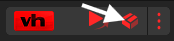
- In the editor toolbar, click the Share Map button or choose VHMap > Share Map....
- The Share Map window opens. Fill in the title, description, visibility and pick a main image.
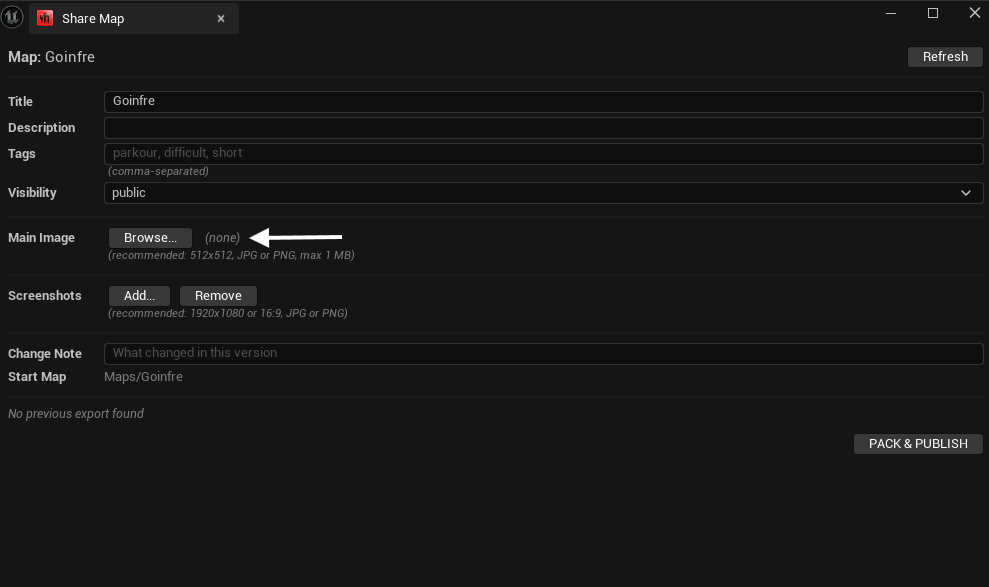
Main image must be set here
The main image can only be added from the Share Map window. It cannot be changed later from the Steam Workshop page. If you publish without an image, you will have to re-upload the map through the game as an update to add one.
Every image must be under 1 MB
Steam applies a 1 MB limit per file to the main image and to each screenshot separately. Ten screenshots at 900 KB are fine; a single one at 1.2 MB makes Steam reject the entire upload with ERROR 25, without saying which file caused it.
VHMap refuses an oversized image when you pick it and again when you press Pack & Publish, naming the file and its size. A 512x512 JPG for the main image and 1920x1080 JPG at moderate quality for screenshots both sit well under the limit. PNG screenshots very often do not.
- VHMap runs diagnostics. Fix anything it reports.
- If everything passes, it cooks your map as DLC, packs it into a
.pakand writes amanifest.json. - Steam will ask if you want to start VHOLUME with a command line. Click Yes. VHMap uses that launch to talk to the Workshop backend.
- The in-game Workshop upload dialog opens.
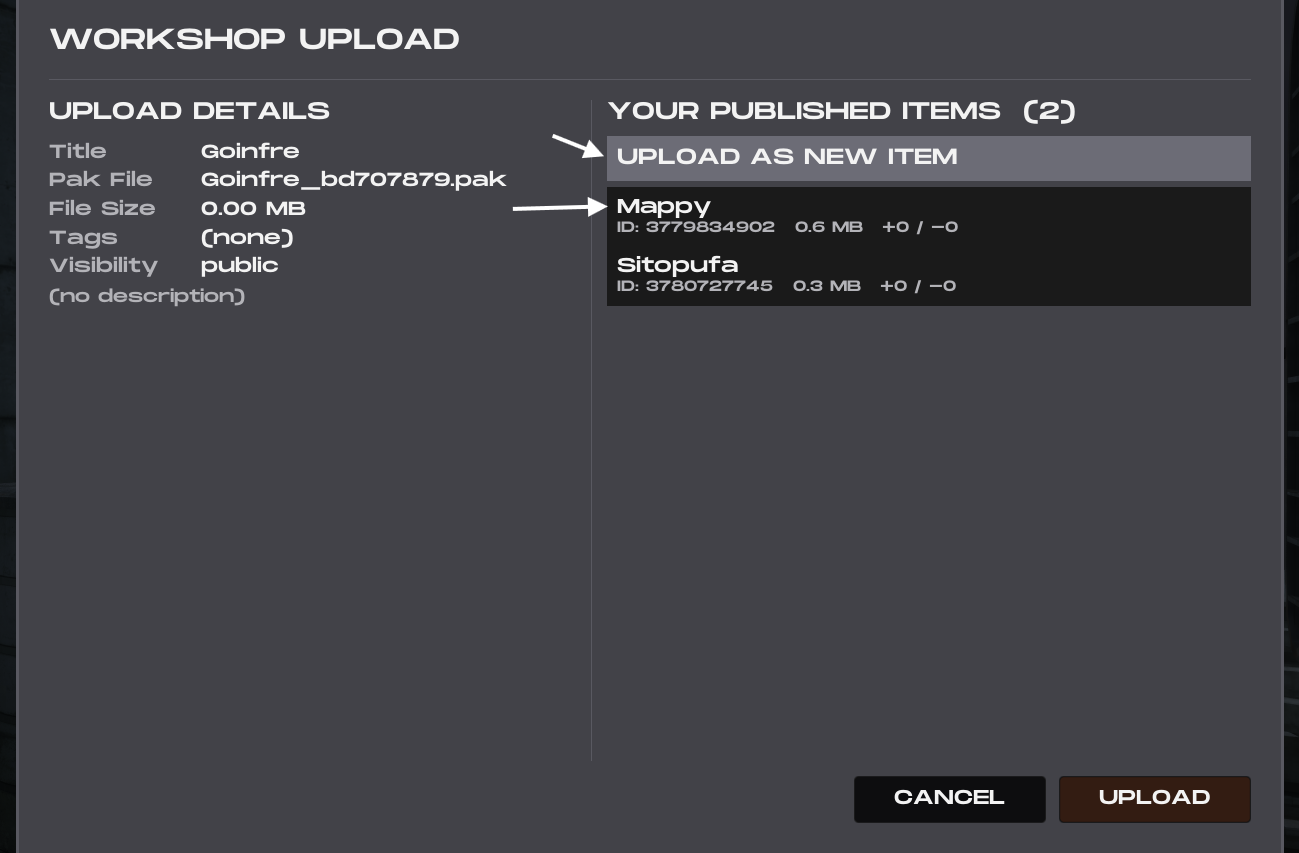
Choose whether to upload as a new item or update an existing one:
- New item -- leave the item field empty and click Upload to create a brand new Workshop item.
- Update existing -- pick your existing item from the list and click Upload to publish a new version.
- Click Upload to finish.
The output files are placed in your map plugin's output folder.
Update a published map
Updating is the same process as Publish to Steam Workshop. The only difference is at the in-game upload dialog: pick your existing item from the list instead of uploading as a new item.
Updating a map resets its leaderboard
When you change the map files, times set on the previous version may no longer be possible, so the leaderboard is cleared.
DANGER
Updating a Workshop item will reset its leaderboard. Claim the map with the VHOLUME Discord bot first if you want to control when the reset happens or keep the old times.
See the Discord Bot page for how to claim a map, freeze resets, or create the leaderboard early.
Privacy options
- Public - anyone can subscribe.
- Friends-only - only Steam friends can see it.
- Hidden - useful for testing before a public release.